
There are a lot of things that can go wrong when dealing with SUSHI and it might be challenging to find the exact source of problems. The following paragraphs describe how to best debug SUSHI.
You can also watch our video on debugging SUSHI credentials:
Test SUSHI credentials
When the dialog for editing SUSHI credentials is open (see Adding new SUSHI credentials), you may use the

button to immediately test the credentials at hand.
By clicking the button, a new dialog will be opened where you can enter the start and end months for which CELUS should try to download data. Because retrieving the data can sometimes take a long time, we are testing the harvest by downloading only one month of data of your choosing.
Then you hit the “START TEST” button to run the test.
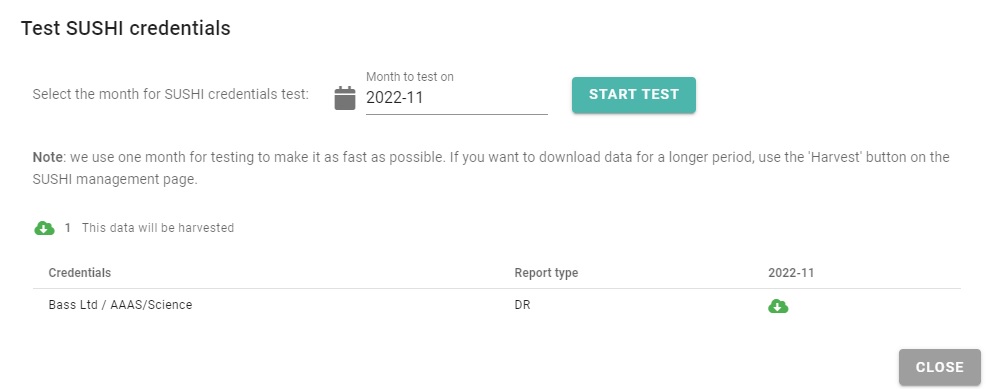
CELUS will the try to download reports for all report types defined in the SUSHI credentials record. It will provide information about the progress of the test and at the end display the results.
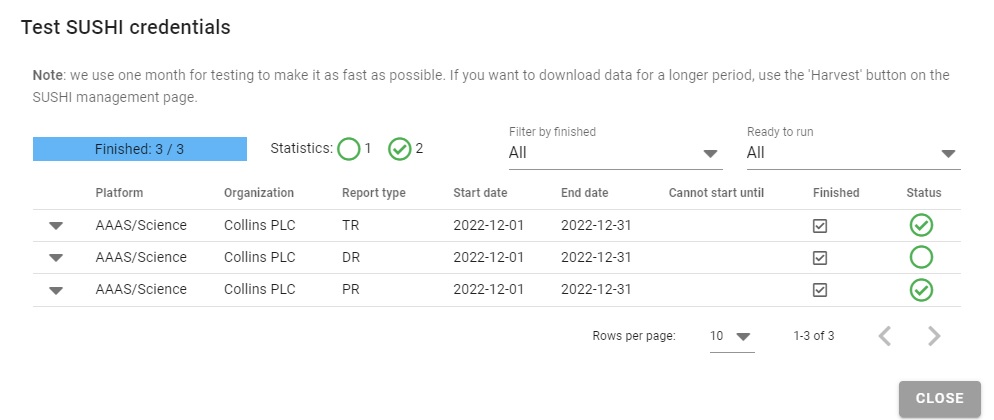
The testing may result in the following statuses:

- download was successful and data were harvested.

- harvest was successful, but there are no data for the specific month.

- the credentials are broken.

- the harvest is planned and will occur once a slot is available. Please wait.

- an error occurred. You can see the details by clicking on the down arrow on the left.

Reviewing past downloads
It is useful to review past SUSHI downloads from time to time - especially if you have a suspicion that some data is missing.
To do so, there are two possibilities. You may use the SUSHI management page, find the SUSHI credentials at hand and use the “DOWNLOADS” button to display a list of all attempts to fetch data for the credentials at hand.
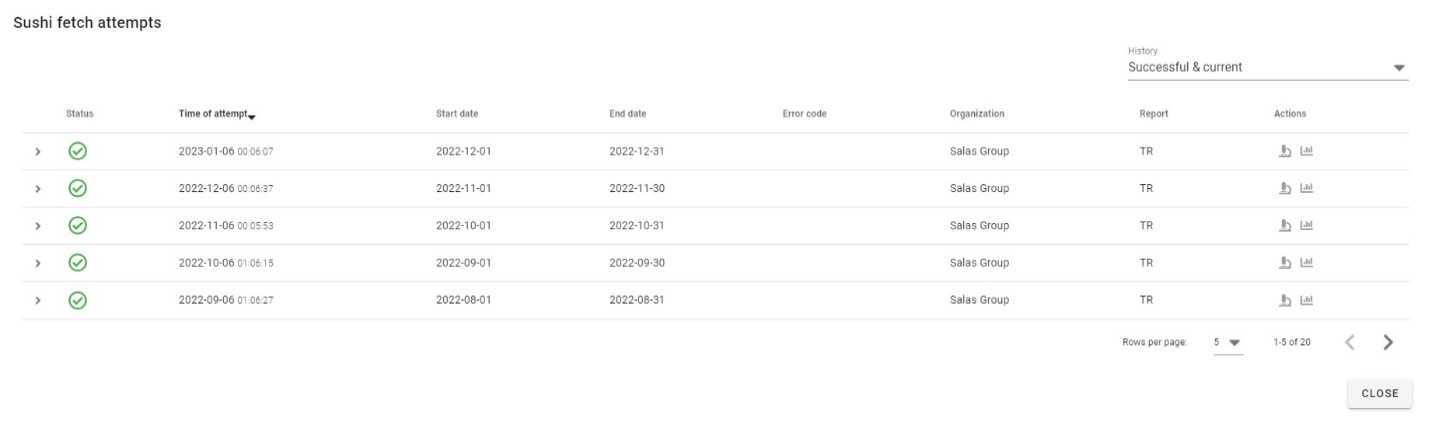
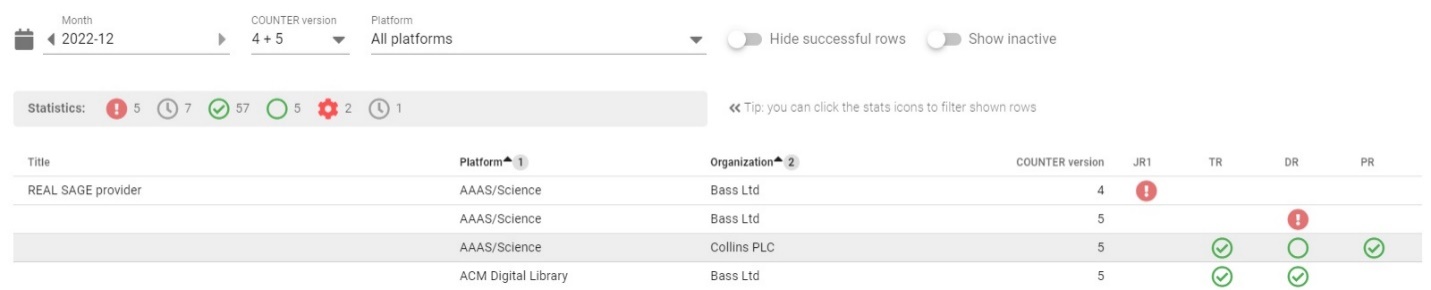
You will get a similar view if you use the SUSHI status page which is described in detail below.
Harvesting errors
Non-sushi
When the error code of attempting to download data is non-sushi, it means that it is not a standard error code reported back by the SUSHI server using the SUSHI error reporting mechanism, but rather some other error. Very often this occurs when the given URL is not correct and CELUS gets an HTML document instead of the expected data. Displaying the downloaded document (if available) may help with determining this cause.
3031
Service has not yet processed the usage for one or more of the requested months - usually this means that you have selected a date for which data are not available yet. We recommend trying with different month or months.
3030
No Usage Available for Requested Dates - usually this means that there was no traffic for the platform at hand at the selected date. However, some platforms use this error code to signal that the data is not ready yet. In both cases we recommend trying a different date to see if there is some data available.
number
Any other number besides the ones described above. These are standard SUSHI error codes. They are usually accompanied with a short description which may help you determine the cause of the problem. Sometimes your system has already made too many requests to the SUSHI server at hand, sometimes the request should be retried in short time. CELUS can deal reasonably with most common cases - by stopping trying other months if the credentials are obviously erroneous, by retrying attempts which should be retried, or by stopping attempts when the server reports overload.
You can find the most commonly problematic platforms and their SUSHI credentials requirements and formats in the table below: