Setting up SUSHI downloading for your organization is usually the most important task you have to perform in CELUS. Management of SUSHI is only accessible to users with organization admin access.
To manage SUSHI credentials, use the SUSHI management link in the left side navigation:

The SUSHI management page presents a list of all SUSHI credentials set up of the currently active organization. You may filter the content of the list by entering text into the search field above the list. You may add new SUSHI credentials using the “ADD NEW SUSHI” button:

The table listing individual SUSHI credentials records may also be reordered by clicking on the headers of individual columns. The table has the following columns:

Your name for the set of credentials. This field is completely optional and does not have to be filled.
Usually the current organization, unless you have access to all organizations.
For each combination of platform and COUNTER version there may be only one set of SUSHI credentials
Each platform may support more than one COUNTER version. Currently, you COUNTER 4, 5 and 5.1 are valid options. You can see which credentials are ready to be cloned to version 5.1 here - a blue upwards arrow is present next to the version number:

List of reports that are activated for the platform at hand for the specified COUNTER version.
Last harvestable month
Information about the last harvestable month is presented here, if you set it up. Learn more
This attribute helps in distinguishing between SUSHI credentials for platforms access to which was obtained through the consortium and those bought separately by the organization. Only master organization member or superuser users may create SUSHI credentials marked as not outside consortium. When organization admins add SUSHI credentials, these are automatically marked as outside consortium.
When this box is ticked, the credentials are used for periodic downloads of new data using the SUSHI protocol. Deactivating the credentials is a simple way how to remove them from automatic downloading without deleting them.
Master organization member or superuser users may lock SUSHI credentials. Locked credentials may not be edited by organization admins. The key icon is present for users who are allowed to lock and unlock the record. Clicking on the key changes the lock status of the record.
Users with the adequate access rights may edit the credentials using the “EDIT” button, view a list of already performed attempts to download data using the “DOWNLOADS” button, and see an overview of downloaded data in "OVERVIEW".

5. Debug Potential issues
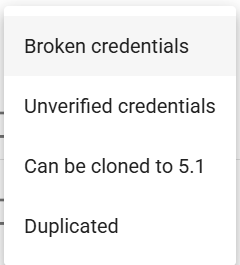
You can view and filter credentials with potential issues by choosing an option from the "Potential issues" dropdown: