For users who want to leverage the data stored in CELUS in PowerBI, Tableau or other analytical tools, CELUS offers an export into a dedicated analytical database. The service, called CELUS Data Hub, is available as an add-on to active CELUS subscriptions.
Internally, the Data Hub uses a powerful dedicated analytical database ClickHouse running on CELUS infrastructure. The database is independent of your CELUS account and has separate access credentials.
All your usage data and tag information is synchronized with the Data Hub on a daily basis with the option of immediate manual synchronization. Other data, such as information about harvesting success, configured credentials, etc. is not included.
The database may be used as a data source for many analytical tools. We have successfully tested it with:
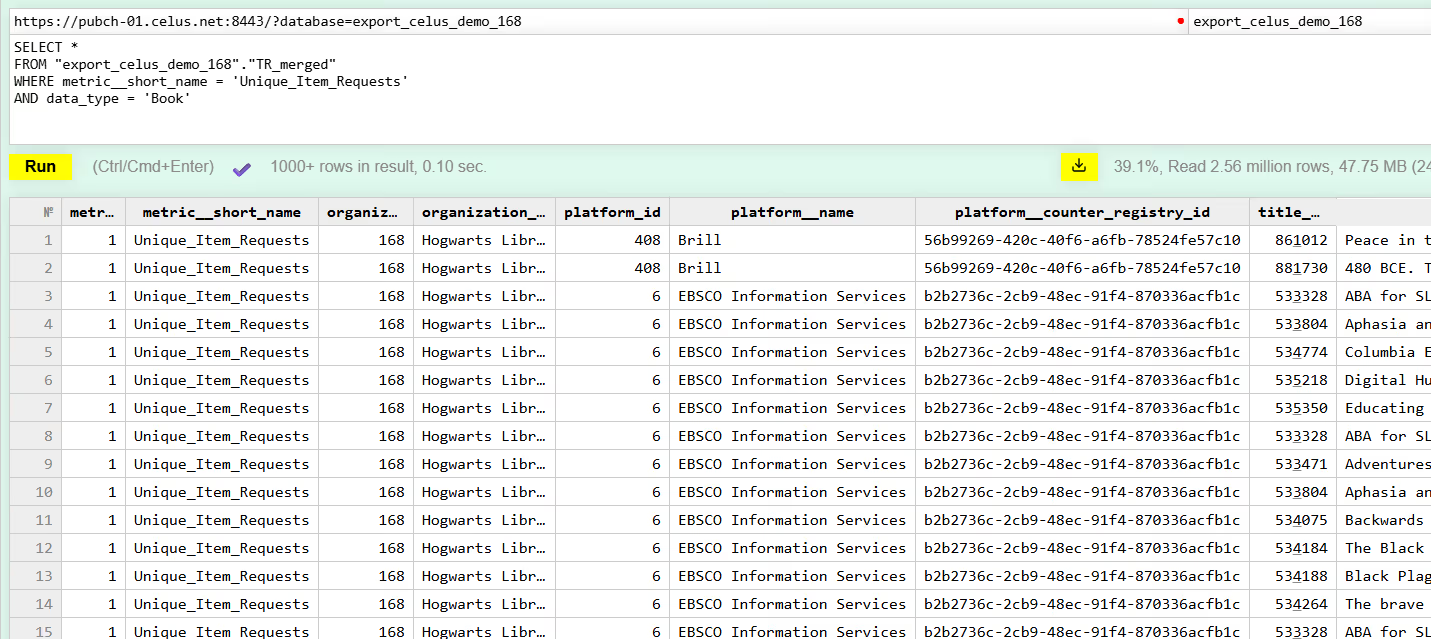
It can also be queried directly using SQL. For exploration and testing, ClickHouse offers a simple web interface where you can explore the database structure and run queries on your data.
Once you receive a message from us that your database is ready, you will be able to connect your Data Hub to Power BI and other BI tools.
In the left side menu / Analytics / Data Hub …
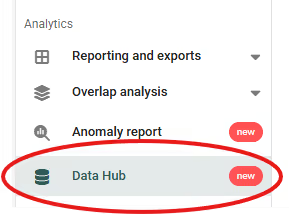
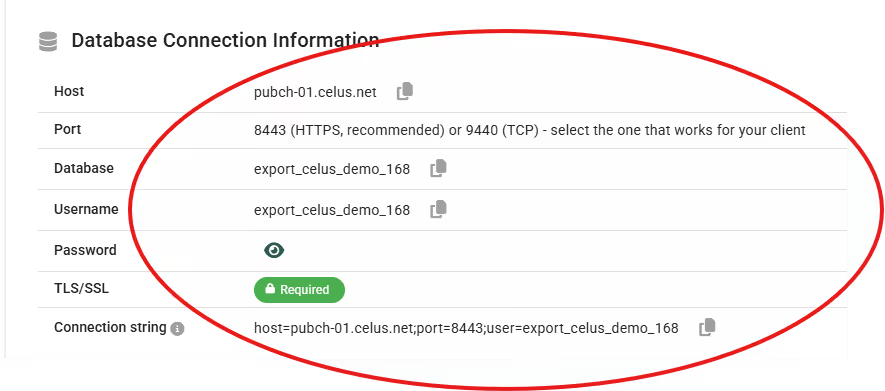
… you will find the database connection information.
The export is synchronized on a daily basis with the option of immediate manual synchronization.

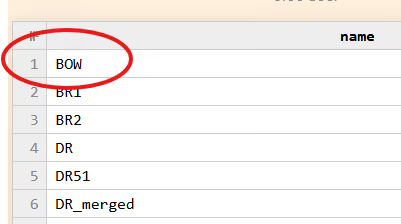
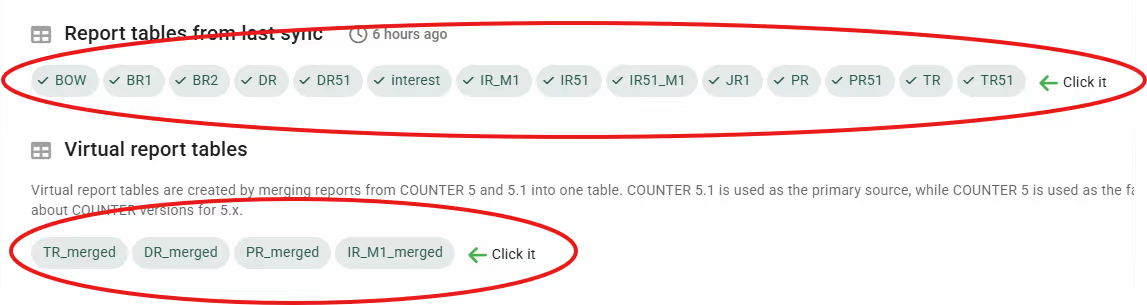
Each report from your CELUS instance is stored in a separate table in the database. For example, if you are harvesting TR, DR and PR reports, you will have three tables named TR, DR and PR. COUNTER 5.1 reports have their own tables with the “51” suffix, e.g. TR51.
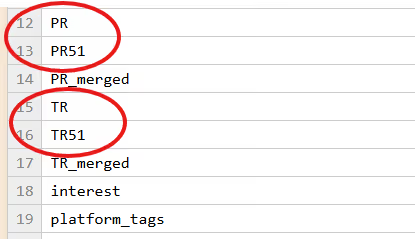
To make the transition between COUNTER R5 and R5.1 seamless, we also provide merged tables for TR, DR, PR and IR_M1 reports (e.g. TR_merged), where data are merged on a month-by-month basis. Data from R5.1 are used preferentially with fallback to R5 when R5.1 data are not available.
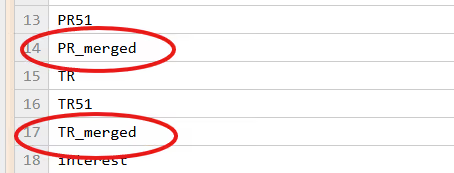
Non-COUNTER reports are exported as well, each as a separate table.
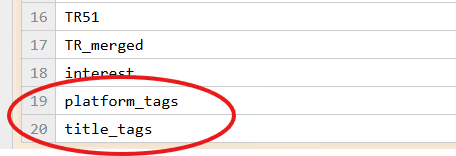
Tags are exported separately into the tables title_tags and platform_tags. These tables may be joined together with the report tables to get usage by tags.
Each table has the same basic structure, with some report-specific columns. By clicking on the report icons in CELUS Data Hub, you are directed to the specific table in the ClickHouse web interface, where you can see all its columns.
In the ClickHouse web interface, you can also run SQL queries on your data for exploration and testing.
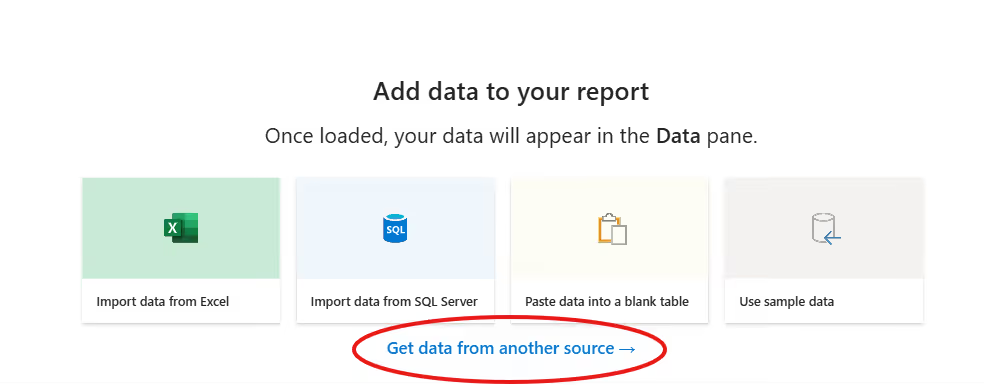
To connect your Data Hub to Power BI, you need the Power BI Desktop. Open a Blank report and select Get data from another source.
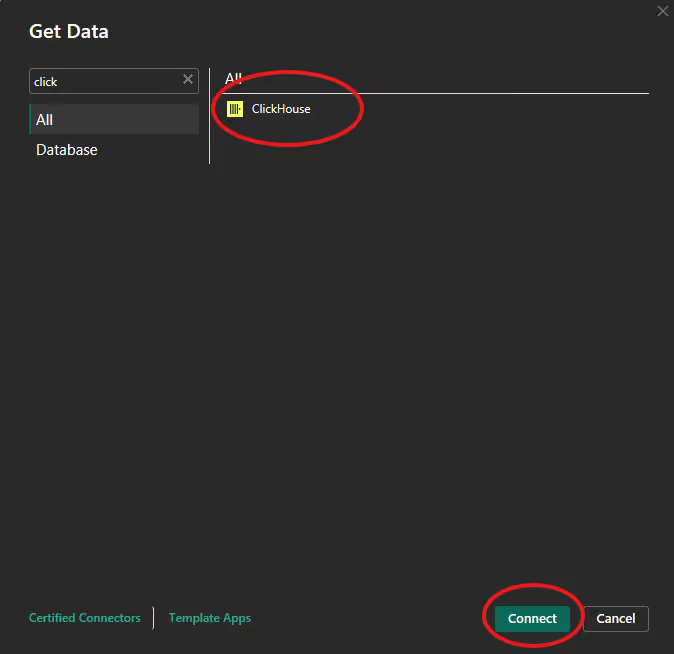
Start to write ClickHouse to find it quickly, select it as a data source and click on Connect.
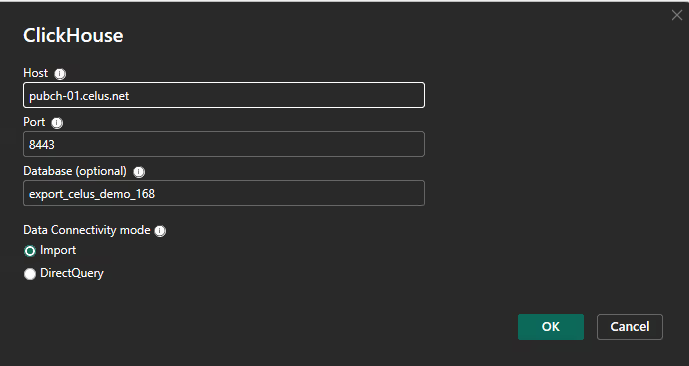
Fill in the information from CELUS and choose Data Connectivity mode Import (data stored in PowerBI file) or DirectQuery (data source remains in Clickhouse).
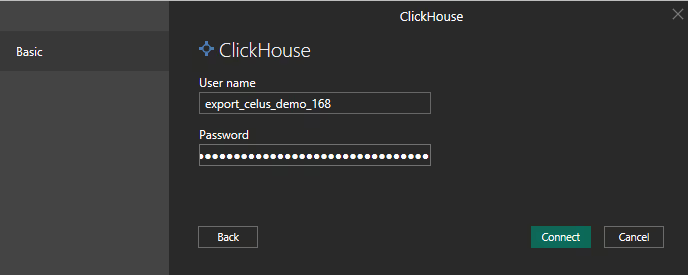
Then you will be prompted to enter User name and Password, which you will retrieve in CELUS Data Hub…
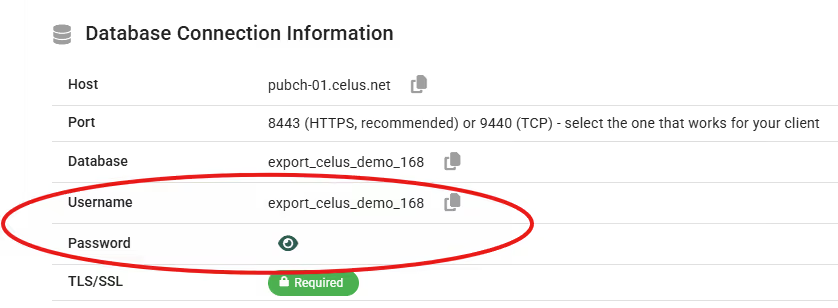
…and enter in Power BI to Connect to your database.
Thereafter, you can work with the data in PowerBI, choosing which reports you want to work with, preview, Load or Transform Data to adjust the data in Power Query Editor, and create your visuals.
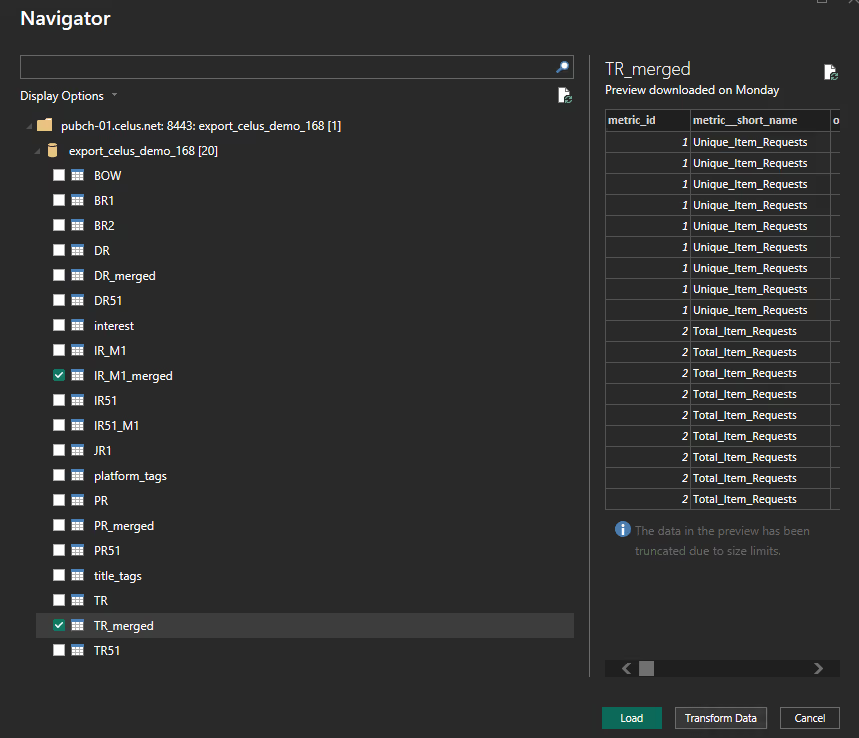
Please notice that your data will be probably large, and it will not be effective to load it all directly into PowerBI. We recommend paying high attention to adjusting your data set in Power Query Editor, keeping only the data needed for your visualizations.
If you encounter problems with the connection between the Data Hub and Power BI desktop, one of the most common problems is the absence of ClickHouse ODBC driver on your computer. It can be downloaded from the following page: Releases · ClickHouse/clickhouse-odbc.